



Automatic updates
With a subscription, install the plugin on all your sites and receive new versions of the plugins and themes we release.
 Skip to content
Pillbanana Tools
Connect your sites to Pillbanana Tools and receive new versions in your WordPress dashboard, just like any other update. Or upload the ZIP file yourself.

Check out how to install the plugin, log in, and update it from WordPress.
Features available today and what's coming soon.
With a subscription, install the plugin on all your sites and receive new versions of the plugins and themes we release.
Ideal for agencies: Hide references to Pillbanana on your clients' websites and maintain a professional image.
PageSpeed Insights report and recommendations for improving the score using specific plugins.
With no subscription or purchases required, you can update using a complimentary limit of 1 update per month.
If you're not using a white-label version, you can view your active licenses directly from the plugin's dashboard.
Support and audits for Core Web Vitals directly from your site.
Configure it once per site. After that, new versions will appear in WordPress just like any other update.
Download the ZIP file for Pillbanana Tools v1.4.2. It's a standard WordPress plugin.
Download for free →In WordPress: Plugins → Add New → Upload Plugin. Select the ZIP file, install it, and activate it.
In the plugin dashboard, enter your Pillbanana username and password.
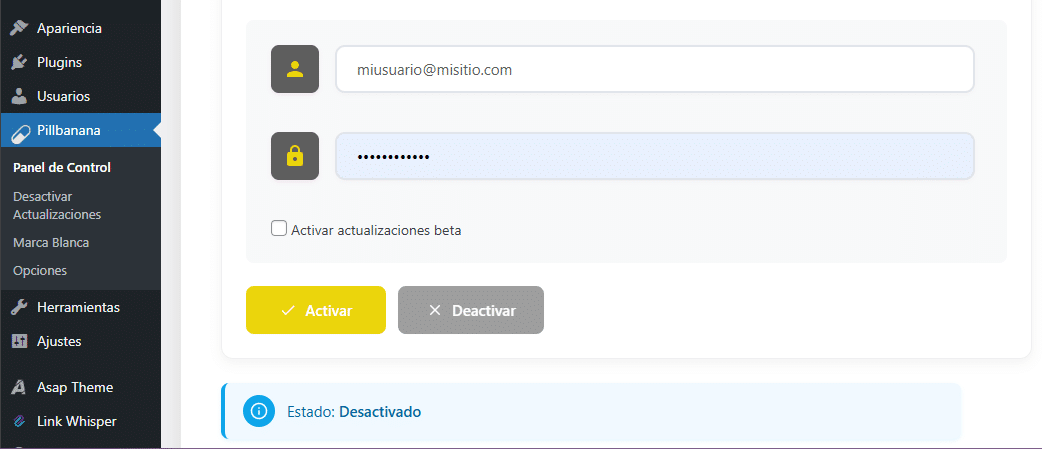

Enable automatic updates for plugins and themes. New versions appear under Dashboard → Updates.

Don't have a plan? You can top up using your courtesy allowance or View the Club's plans.
Subscriptions include 20 downloads per day. The plugin uses up to 15 of them, leaving 5 available if you want to download something directly from pillbanana.com.
The plugin probably updated on its own and used up your daily quota. You always have 5 downloads left from the site. If you have the plugin on multiple sites, the updates are distributed automatically.
You can: (1) update some ZIP files manually (1 credit per product) or (2) if you have more than ~20 sites, use a second subscription and alternate between them. It also helps to check the Update changelog.
Would you rather upload the ZIP file yourself? WordPress will replace the previous version. You don't need to deactivate or delete it first.
What you see in Step 4
This plugin is already installed.
| Current | Uploaded | |
|---|---|---|
| Version | 3.21.0 | 3.25.4 |
If something isn't working, please open a support ticket with a screenshot or a short video. In the meantime, check "My Account" or the changelog.